Who took part in the conversation?
AI recognises voices but does not know names. The participants window appears when you first open a conversation.
- Select “That’s me” beside one of your utterances.
- For the other people, enter a name or accept a suggestion. A quote, speaking share and the “Listen” button can help.
- Choose “Save”. If you don’t know who is speaking, choose “I don’t know — skip”.
Return to participants later through the people icon beside the conversation type. “That’s me” matters for Mentor, Tutor and your tasks.
Reading and listening to the transcript
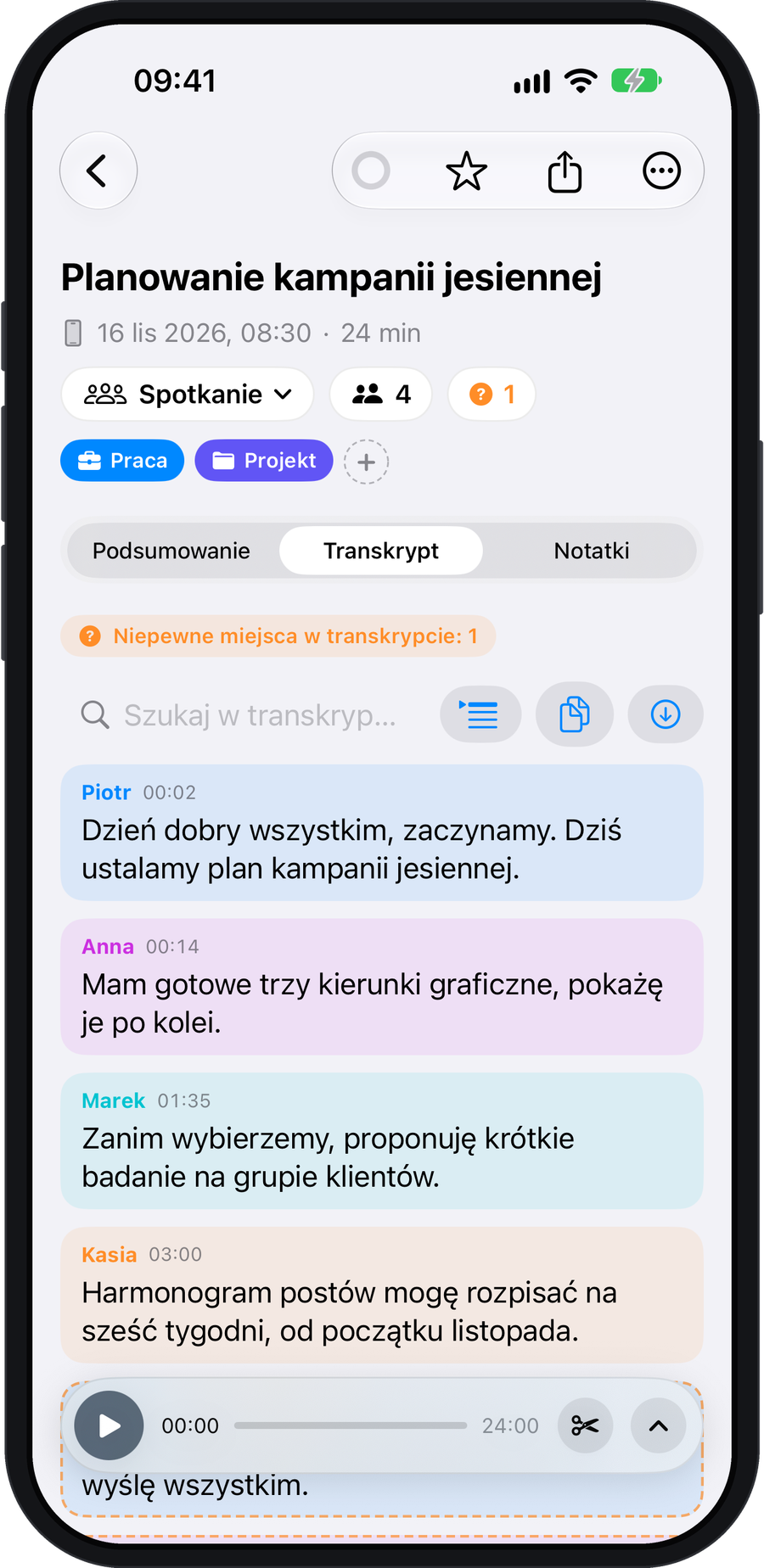
Each speaker has a colour, and utterances have timestamps. Tap an utterance to play the recording from that point. Search highlights matching passages.
A dashed orange border indicates an uncertain passage. Listen and check what was actually said. Add troublesome surnames, company names and terms in “Settings” → “Dictionary”.
When voices have been assigned incorrectly
- In the speakers window, enter the correct number of people and choose “Rebuild speakers”.
- Use “Merge with…” if one person appears as two speakers.
- Press and hold an utterance in the transcript to assign it to someone else. You can also select multiple utterances.