Start and stop recording
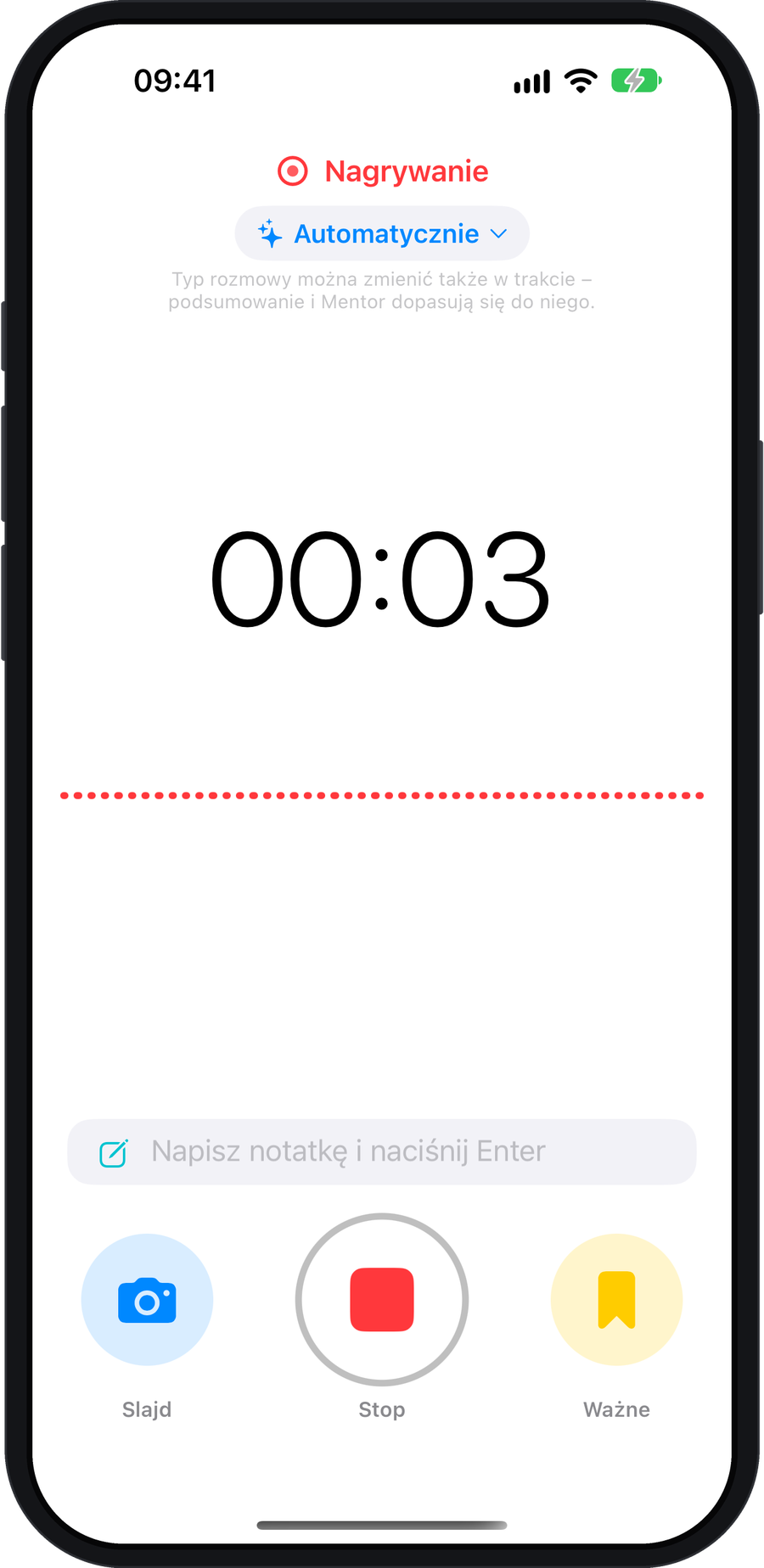
- Tap the red button on the Conversations screen.
- Tap Important when something matters. The marker saves that point in the recording.
- Tap Stop to finish. The audio is saved on your phone.
What happens after recording
Use the Process card to choose a conversation type and quality. You can trim the recording before sending it or come back later. The processing button shows the cost before you start.
After processing, open the transcript, summary or Important moments. Each marked moment has a timestamp you can play from.
More room for your conversation list
Collapse the carousel with the button in the bottom-right corner. A translucent record button remains, and the small arrow beside it expands the carousel again.
The magnifying glass searches titles, summaries and transcripts. Conversations can be sorted by date or label.