Add labels
A conversation can have several labels, such as “Work”, “Client” or “Home / Family”. Add them with the small “+” beside the labels in a conversation, or swipe left on a conversation in the list.
An AI suggestion has a dashed border: accept or dismiss it. Your custom labels are in “Settings” → “Organisation” → “Labels”. You can filter and sort the conversation list by label. Archiving removes a conversation from the main list.
Create a note
- Open a conversation and go to the “Notes” tab.
- Choose “Create note”.
- Select a template that suits the conversation.
The guide describes 12 templates: meeting minutes, brief note, project update, brainstorming, 1:1, client, follow-up email, candidate, lecture, doctor, family matters and voice memo. Custom templates are in “Settings” → “Note templates”.
The note is based on the conversation. Sections with no relevant decisions say “Not agreed”. You can edit the finished text in the “…” menu.
Save or share
Share a note as text with another app, or save it as PDF, Markdown, plain text, HTML or RTF for Word and Pages. An email can include both PDF and Markdown files.
The WhatsApp option opens the app with prepared text. The Slack option copies the text and opens Slack; you paste it yourself.
Conversation materials
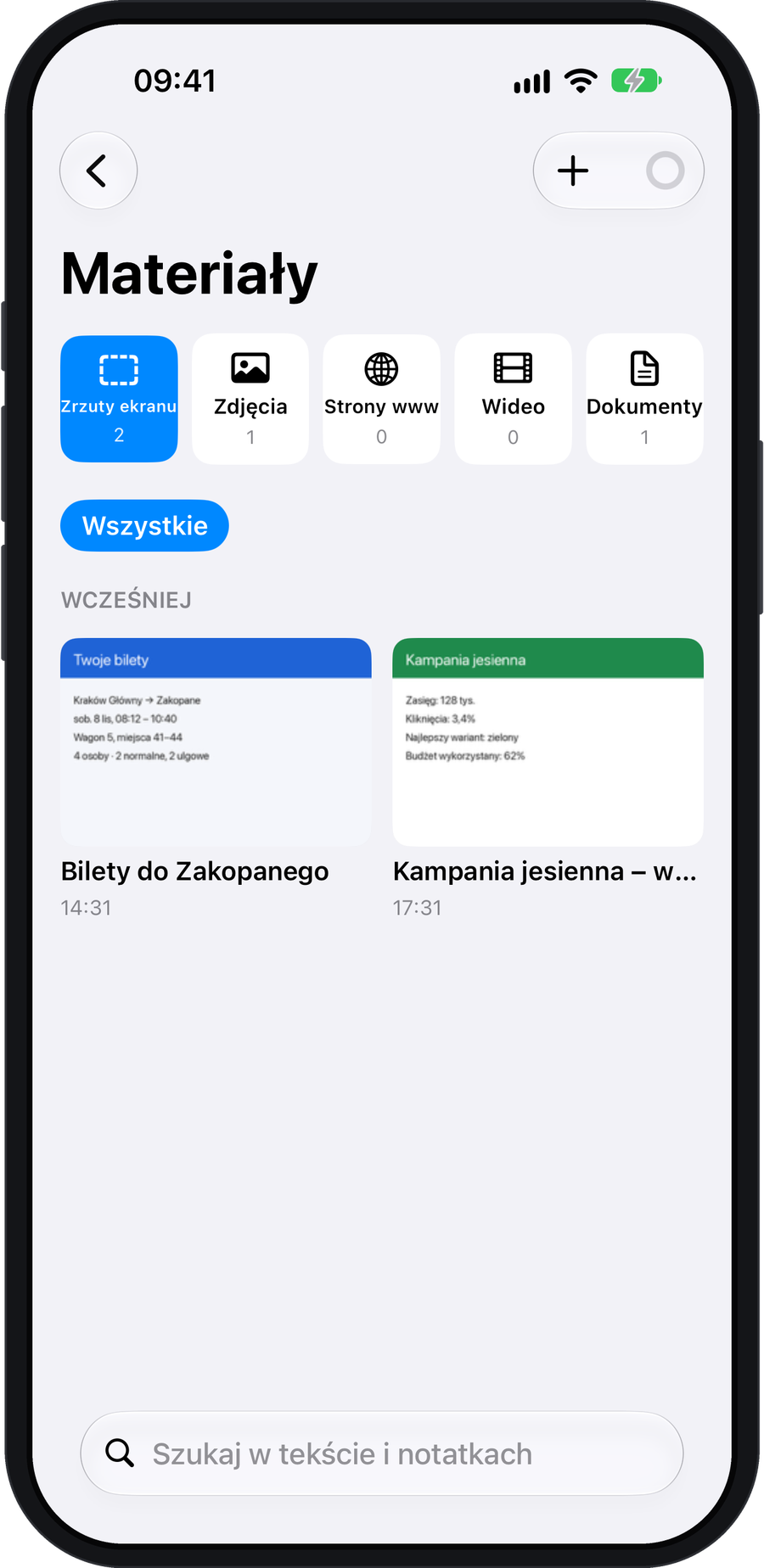
Attach screenshots, slide photos, PDFs, web pages or videos to a conversation. Text in images is recognised on your iPhone.
People directory
After processing, review the suggested facts and dates about the people you spoke with. Only items you choose to Save are added to the directory. Open Before the meeting for a refresher before your next conversation.