Choose tasks after a conversation
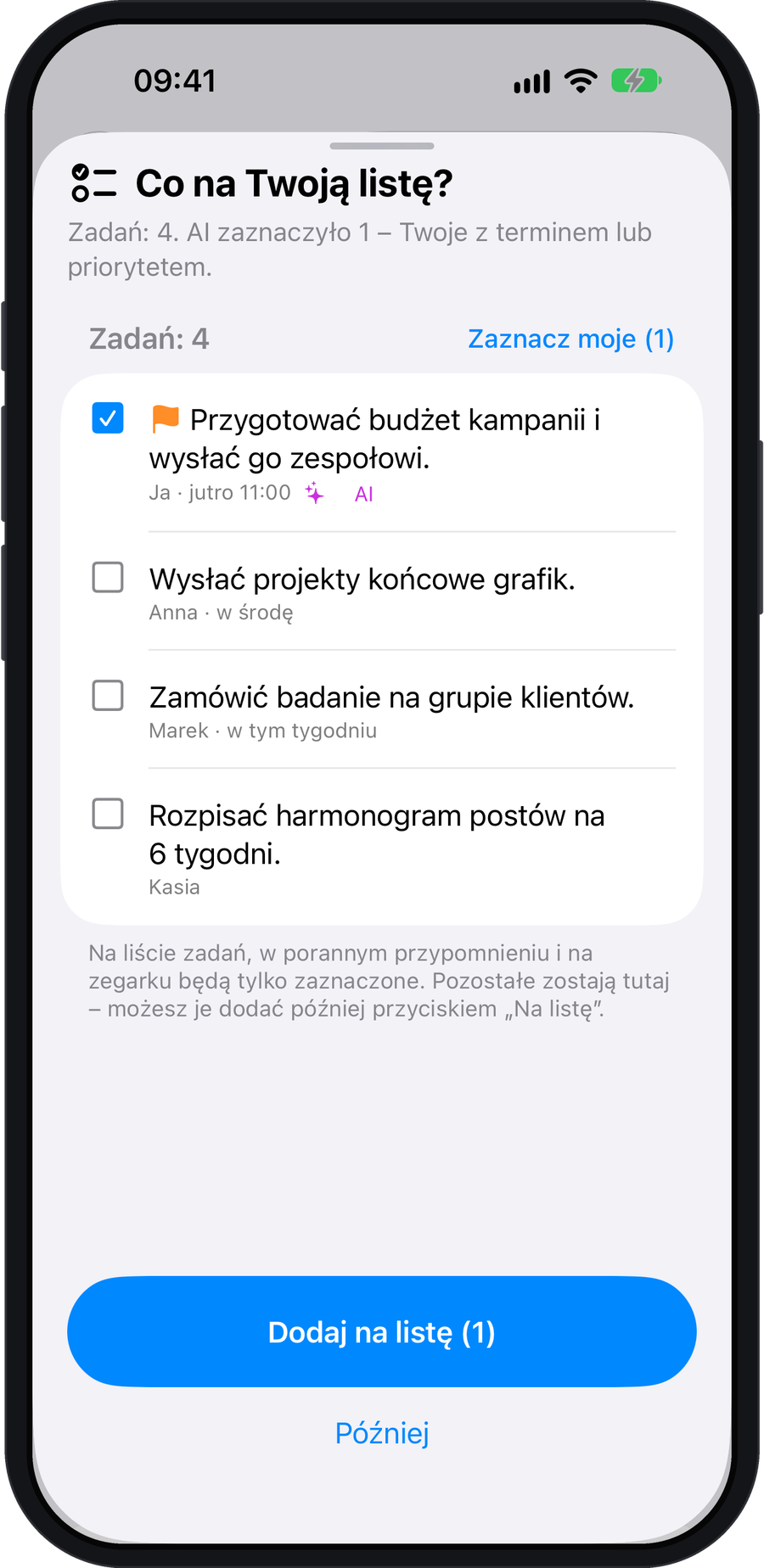
After processing, open the task selection card. AI preselects your tasks with a deadline or a priority. Review your selection and tap Add to list. Other tasks stay in the conversation.
Mine and Others
Open the list icon in the top-left corner of the home screen. Tasks are grouped by person under “Mine” and “Others”. You can also add your own tasks unrelated to a conversation.
Each task shows its source conversation, deadline and any priority. Tap a card to edit it, or tap its source to open the conversation.
Organise your list
- Tap the circle to move a task to “Done”.
- Swipe right to mark a task as done or set a priority.
- Swipe left to access reminders, Calendar or hiding.
- Drag cards to change their order.
- Use search to find a specific task.
Priority tasks have an orange marker and a flag and move to the top. An overdue deadline turns red.
Calendar and reminders
To add a task to iPhone Calendar, set a date and choose “Save and add to Calendar”. The event is created only after you confirm with “Add”.
In “Settings” → “Tasks”, turn the morning reminder on or off: one notification a day. Open tasks are also available in “My tasks” on Apple Watch.
Add a quick task by voice
Start a short recording with “Task”, for example “Task: call Mark tomorrow at 3 pm”. The task goes straight onto your list. Tap Undo to remove it.
Attachments and dictation
When adding a task, you can dictate its text. Attach a photo or file to keep what you need alongside the task.